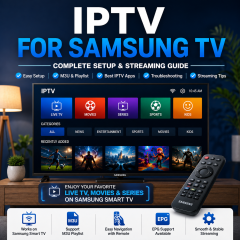
IPTV for Samsung TV: Complete Setup, App and Streaming Guide
Samsung Smart TV is one of the most convenient platforms for enjoying IPTV at home. With an internet connection, a compatible IPTV application, and the correct service information, users can create a complete streaming environment directly on the television without making an external streaming box the center of the setup.
For beginners, however, the first installation can raise several questions. Which IPTV application should you choose? How do you add an IPTV playlist? Can M3U work on Samsung TV? What should you do when the IPTV app opens but the playlist does not load?
This IPTV for Samsung TV guide answers those questions in a practical way. It covers Samsung Smart TV preparation, IPTV application selection, playlist configuration, M3U setup, EPG, troubleshooting, performance improvements, and multi-device use.
The exact menus can differ between Samsung TV models and software versions, but the overall setup process remains similar:
Connect the TV → Install a compatible IPTV app → Add IPTV information → Load content → Test playback → Organize the interface
What Is IPTV for Samsung TV?
IPTV stands for Internet Protocol Television and refers to television and digital video content delivered through internet networks.
When IPTV is used on a Samsung Smart TV, the television provides the screen and Smart TV environment, while the IPTV application handles playlist information and content organization.
The basic process looks like this:
Internet → IPTV Application → Service Information → Playlist → Samsung TV Playback
The exact setup depends on the Samsung TV model, the IPTV application, and the information supplied with your IPTV service.
This is why there is not one universal Samsung IPTV installation method. Different applications can use different interfaces and login formats.
Why Choose IPTV for Samsung Smart TV?
Samsung Smart TVs are well suited to users who prefer a large-screen viewing environment.
Large Screen
A television provides a much more comfortable viewing experience than a smartphone or tablet when watching for longer periods.
Remote Control Navigation
A TV-focused IPTV application can be controlled directly with the Samsung remote, making it easier to browse categories and switch between content.
Simple Home Setup
When a compatible application is available for your television, the Smart TV can handle the main viewing functions without requiring additional hardware.
Centralized Entertainment
Users can keep IPTV alongside their other Smart TV applications, creating one central entertainment environment.
What You Need for IPTV on Samsung TV
Before starting, prepare the four basic components.
1. Samsung Smart TV
Make sure your TV supports Smart TV applications and is connected correctly.
Application availability can vary according to the exact TV model and software environment.
2. Internet Connection
Connect your Samsung TV using:
Before working on IPTV, test another online application. If other applications also struggle to connect, fix the network first.
3. Compatible IPTV Player
An IPTV player reads your service information and turns it into a usable viewing interface.
Depending on the player, you may see options such as:
-
M3U Playlist
-
Login
-
Server URL
-
Portal
-
EPG
The most important factor is compatibility with the format you need to use.
4. IPTV Service Information
Prepare the information required by your player.
This can include:
-
M3U URL
-
Username
-
Password
-
Server address
-
Playlist details
Long URLs should be copied carefully because even one incorrect character can prevent the playlist from loading.
IPTV for Samsung TV: Step-by-Step Setup
Step 1: Connect Samsung TV to the Internet
Open the network settings on your Samsung TV.
Choose Wi-Fi or Ethernet and complete the connection.
Once connected, open another online application and confirm that the TV can access the internet normally.
Step 2: Open the TV Application Store
Open the application section of your Samsung Smart TV.
Search for an IPTV player that matches your setup.
Do not select an application simply because it contains the word “IPTV.” Check whether it supports your required input format.
Step 3: Install the IPTV Player
Select the compatible application and install it.
After installation, launch the application and review the available setup options.
The application may ask you to add a playlist, enter account information, or configure a server.
Step 4: Choose the Correct Login Method
The setup screen may offer several methods.
For example:
M3U Playlist
Choose this option when your service provides an M3U URL.
Username and Password
Use this when the application supports account-based login.
Server or Portal
Some IPTV applications use server or portal information instead of a standard playlist field.
Choosing the wrong method can make otherwise correct information appear invalid.
Step 5: Enter Your IPTV Information
Enter the information exactly as supplied.
When working with an M3U URL, copy and paste the full address whenever possible.
Avoid:
-
Extra spaces
-
Missing characters
-
Incorrect punctuation
-
Partial URLs
Step 6: Wait for the Playlist to Load
After submitting the information, allow the application enough time to synchronize.
Large playlists can take longer to organize.
Avoid repeatedly exiting the application while it is loading.
Step 7: Test Multiple Categories
Once loading is complete, test several sections.
Depending on the service, you may see categories such as:
-
Live TV
-
Sports
-
News
-
Movies
-
Series
-
Entertainment
Testing multiple categories gives you a better understanding of whether the installation is functioning normally.
IPTV App Selection for Samsung TV
Choosing the IPTV player is one of the most important parts of setting up IPTV for Samsung TV.
Check Playlist Compatibility
Make sure the application supports the IPTV format you plan to use.
Check Remote Navigation
The interface should be comfortable to operate with a Samsung TV remote.
Large buttons and simple menus are generally easier to use than interfaces designed primarily for phones.
Check EPG Support
An Electronic Program Guide can make live content easier to browse.
Check Favorites
A favorites feature is useful when your playlist contains a large number of categories.
Check Playlist Management
If the application allows users to organize categories, hide unwanted sections, or reorder favorites, everyday navigation becomes much easier.
IPTV for Samsung TV With M3U
M3U is one of the most common IPTV playlist formats.
An M3U playlist contains structured information that an IPTV application reads to create a list of available streams.
The basic workflow is:
M3U URL → IPTV Player → Playlist Categories → Playback
The installation process is usually:
-
Open the IPTV application.
-
Select the playlist or M3U option.
-
Paste the M3U URL.
-
Save the playlist.
-
Wait for synchronization.
-
Open the available categories.
-
Test playback.
For Samsung TV users, the key point is not simply having an M3U URL. The IPTV application must also support M3U input.
IPTV for Samsung TV: EPG and Content Organization
A good IPTV setup should be easy to navigate after installation.
EPG
An Electronic Program Guide provides program information in a schedule-style layout when supported.
It can make live TV navigation easier because users can see what is currently available and what is coming next.
Favorites
Save frequently watched categories or channels to reduce navigation time.
Categories
If your IPTV application allows category management, organize sections according to your viewing habits.
Language
Choose an interface language that is comfortable for daily use.
Playback Settings
Depending on the application, you may have settings for subtitles, aspect ratio, audio, and other playback preferences.
IPTV for Samsung TV: Compatible Product Examples
LotinTV currently has several existing product pages that specifically mention Samsung and LG Smart TV compatibility.
For example, the Tivi ONE IPTV Server page lists Samsung and LG Smart TV support together with Android TV Box, iOS, Firestick, MAG, Enigma2, Kodi, VLC, and M3U environments. (lotintv.com)
Learn more about:
Tivi ONE IPTV Server for Smart TV
Another current LotinTV product, Lion OTT, also lists Samsung and LG Smart TV compatibility and describes multi-device support across Android, iOS, Fire Stick, MAG, and computers. (lotintv.com)
For users comparing Smart TV compatibility across different environments:
Lion OTT Multi-Device IPTV
A further option is the current StrongTV IPTV Server, whose product information lists Samsung and LG Smart TV support together with Android TV Box, Firestick, MAG, Enigma2, Kodi, VLC, and M3U. (lotintv.com)
You can review:
StrongTV IPTV with Samsung Smart TV Support
These pages give users practical examples of the different device combinations available within LotinTV's current product catalog.
How to Improve IPTV Performance on Samsung TV
A good IPTV experience depends on more than the player itself.
Use Ethernet When Practical
When the TV is close to your router, a wired connection can provide a consistent network environment.
Improve Wi-Fi Placement
If Ethernet is not practical, try to maintain a strong wireless signal.
Distance, walls, furniture, and other connected devices can affect Wi-Fi performance.
Keep Samsung TV Software Updated
Keeping the television software current can improve compatibility with applications.
Keep the IPTV App Updated
Application updates can also improve stability and compatibility.
Reduce Unnecessary Applications
If your TV has many unused applications, removing unnecessary software can make the device easier to manage.
IPTV for Samsung TV Troubleshooting
Even a correctly prepared Smart TV can encounter setup problems.
The best approach is to check one component at a time.
The IPTV App Is Not Available
Application availability can depend on the television model and software environment.
If one IPTV player is unavailable, search for another compatible application.
The IPTV App Opens but No Content Appears
Check:
-
M3U URL
-
Username
-
Password
-
Server information
-
Selected login method
A small configuration error can prevent the playlist from appearing.
The Playlist Takes Too Long to Load
Give larger playlists enough time to synchronize.
If the problem continues, test whether another compatible player handles the same information differently.
IPTV Playback Is Not Smooth
Start with the network.
Check whether:
-
Other streaming applications work normally
-
Wi-Fi signal is strong
-
The router is too far away
-
Multiple devices are heavily using the connection
Then determine whether the issue affects everything or only specific content.
The IPTV App Freezes
Close the application and reopen it.
If necessary, restart the television.
You can also check for application and system updates.
IPTV Works on Another Device but Not Samsung TV
This can happen when different applications use different input methods.
Compare:
-
IPTV player
-
Login method
-
Playlist format
-
TV software
-
Application version
Samsung Smart TV vs Android TV for IPTV
Both platforms can provide a good IPTV experience, but they suit slightly different users.
Samsung Smart TV
Samsung provides a dedicated Smart TV environment and a television-focused interface.
It can be a good choice for users who prefer a straightforward home entertainment setup.
Android TV
Android TV generally provides greater application flexibility.
Users who want to experiment with multiple applications may appreciate the broader Android environment.
Which Platform Is Better?
The best option is usually the platform you already own and the one that supports the IPTV application and format you need.
There is no reason to add another device simply for the sake of additional hardware if your Samsung TV already provides a suitable IPTV environment.
IPTV for Samsung TV and Multi-Device Viewing
A modern household may use several screens.
For example:
Samsung Smart TV — main living-room display
Android TV Box — second television
Fire TV — additional screen
Smartphone — mobile viewing
Computer — desktop viewing
The IPTV concept remains similar across these devices, but the installation method may change.
The application, login method, playlist handling, and user interface can all vary depending on the platform.
This is why device compatibility should be considered before choosing an IPTV setup.
IPTV for Samsung TV for Advanced Users
Once the basic installation is complete, experienced users may want additional organization and customization.
Multiple Playlists
Some applications allow multiple playlists to be managed in one interface.
EPG Customization
Advanced EPG options can make program navigation more detailed.
Favorites and Groups
Creating custom groups can reduce the time spent searching through large playlists.
Playback Preferences
Some players provide additional playback and subtitle settings that can be adjusted according to your television environment.
IPTV for Samsung TV: Beginner Checklist
Before finishing your setup, check:
A systematic checklist is much more useful than repeatedly reinstalling applications without identifying the actual problem.
Frequently Asked Questions About IPTV for Samsung TV
Can I use IPTV on Samsung Smart TV?
Yes. Samsung Smart TV is one of the Smart TV environments currently supported by several LotinTV products. The exact setup depends on the TV model, available applications, and IPTV input format. (lotintv.com)
Can I use M3U on Samsung TV?
Yes, provided the IPTV application installed on your television supports M3U playlist input.
How do I install IPTV on Samsung Smart TV?
Connect the TV to the internet, open the application area, choose a compatible IPTV player, install it, select the appropriate input method, enter the required information, and wait for the playlist to load.
Why is my IPTV playlist not loading?
Check your playlist or login information first, then verify the internet connection and application compatibility.
Why does IPTV buffer on Samsung TV?
Start with the internet connection and determine whether other streaming applications behave normally. Network conditions, application settings, device performance, and specific content can all affect playback.
Do I need an Android TV Box for IPTV on Samsung TV?
No. An Android TV Box is optional. If your Samsung Smart TV has a compatible IPTV application, you can use the television directly.
Can IPTV work on Samsung and other devices?
Yes, depending on the IPTV setup. Many services support multiple device environments, although the exact application and configuration method can differ from one platform to another.
Final Thoughts
Using IPTV for Samsung TV is relatively simple when the setup is approached in the right order.
The essential workflow is:
Connect the TV → Choose a compatible IPTV player → Add IPTV information → Load the playlist → Test playback → Organize your interface
The most important decision is choosing an application that supports the information format you already have.
After that, most configuration problems can be isolated by checking the television, network, application, and service information individually.
Samsung Smart TV also provides a convenient foundation for a wider multi-device setup. Users can keep the Samsung television as their primary viewing screen while using Android TV, Fire TV, smartphones, or computers in other locations.
For users comparing Smart TV-compatible IPTV options, the current LotinTV catalog includes products such as Tivi ONE, Lion OTT, and StrongTV, all of which have product information referencing Samsung and LG Smart TV compatibility. (lotintv.com)
The result is a more practical topic structure for SEO:
IPTV for Samsung TV → Samsung Setup → IPTV Player → M3U → EPG → Troubleshooting → Multi-Device Compatibility