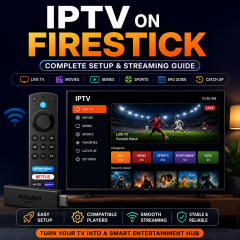
IPTV on Firestick: Complete Setup and Streaming Guide
Using IPTV on Firestick is one of the most practical ways to create a flexible streaming setup on a television. The Firestick is compact, easy to connect to a TV, and designed around remote-controlled streaming applications, making it a popular choice for users who want a simple large-screen entertainment environment.
The challenge for beginners is usually not the Firestick itself. The confusing part is understanding which IPTV player to use, which login format is required, how M3U or Xtream Codes work, how to organize a large playlist, and what to check when the application opens but the content does not appear.
This complete IPTV on Firestick guide covers the process from the first setup to everyday viewing. It explains how to prepare the device, choose a compatible player, add IPTV information, manage playlists, configure EPG, improve navigation, and troubleshoot common problems.
The basic workflow is:
Connect Firestick → Connect Internet → Install IPTV Player → Add IPTV Information → Load Playlist → Test Playback → Organize Content
Once these steps are clear, Firestick IPTV setup becomes much easier.
What Is IPTV on Firestick?
IPTV stands for Internet Protocol Television and refers to digital television content delivered through internet networks.
When IPTV is used on a Firestick, the Firestick acts as the streaming device connected to your television while an IPTV application provides the interface used to access and organize content.
The setup can be understood as:
Internet Connection → IPTV Player → Service Information → Playlist → Firestick Playback
The player is particularly important because it controls how your content is displayed.
Depending on the application, you may get:
-
Live TV categories
-
Movies
-
Series
-
Sports
-
Favorites
-
Search
-
EPG
-
Catch-up
-
Multiple playlists
-
Playback settings
The Firestick itself does not determine which interface you get. The IPTV player you choose has a major influence on the experience.
Why Use IPTV on Firestick?
Firestick is attractive for IPTV users because it combines a compact streaming device with a television-focused interface.
Compact Hardware
The device connects directly to a television and does not require a large external media box.
Remote-Friendly Interface
Fire TV applications are designed for television navigation, making it easier to browse categories and change channels with a remote.
Flexible Application Environment
Users can choose from different streaming and IPTV applications depending on compatibility and personal preferences.
Easy Television Integration
Once configured, the Firestick can remain connected to the TV and become part of the normal home entertainment setup.
Amazon's current Fire TV ecosystem includes Fire TV Stick models, Fire TV Cube, and Fire TV Smart TV products, providing several hardware environments for television-based applications.
What You Need Before Setting Up IPTV on Firestick
A good setup starts with preparation.
1. Firestick or Fire TV Device
You need a compatible Fire TV device connected to your television.
Current Fire TV hardware includes Fire TV Stick models and Fire TV Cube, while Fire TV software is designed to support television applications and media experiences.
2. Internet Connection
Connect your Firestick to Wi-Fi before starting the IPTV configuration.
If your Fire TV device is close enough to your router, a stable network environment can make the setup process easier to troubleshoot.
Before opening the IPTV application, test another streaming application.
If the other app also has connection problems, the problem is probably not your IPTV player.
3. IPTV Player
An IPTV player is the application responsible for displaying your playlist and organizing your content.
Different applications support different input methods and features.
Common options include:
4. IPTV Service Information
Depending on the player and service, you may receive:
-
M3U URL
-
Username
-
Password
-
Server URL
-
Xtream Codes information
-
Portal information
Keep this information available before you begin the installation.
IPTV on Firestick Step by Step
Step 1: Connect Your Firestick
Connect the Firestick to an available HDMI port on your television.
Select the correct HDMI input and complete the standard Fire TV setup.
If this is a new device, make sure the basic Fire TV interface is working correctly before moving on to IPTV.
Step 2: Connect Firestick to the Internet
Open the network settings on the device.
Select your Wi-Fi network and complete the connection.
Then test an existing streaming application.
This is an important step because it confirms that the Firestick itself has a working internet connection.
Step 3: Choose an IPTV Player
Do not install an IPTV application simply because it appears first in a search.
Instead, consider:
-
Device compatibility
-
M3U support
-
Xtream Codes support
-
EPG
-
Favorites
-
Search
-
Playlist management
-
Remote navigation
-
Interface speed
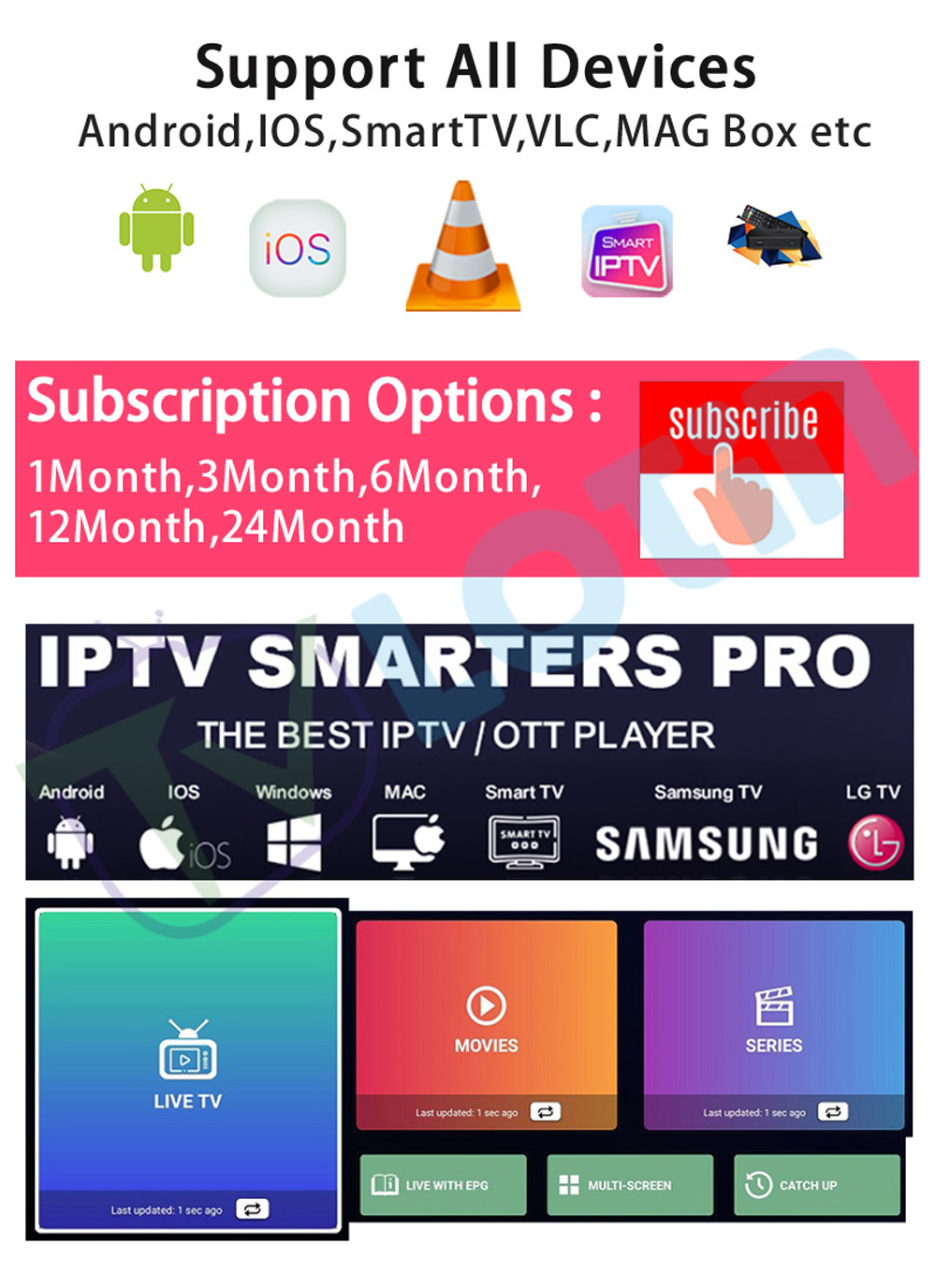
LotinTV's current product information lists IPTV player compatibility options including IPTV Smarters Pro, TiviMate and XCIPTV on supported IPTV environments.
This is useful because the choice of player should be based on the format and device you actually use.
Step 4: Install the IPTV Application
Install a Fire TV-compatible IPTV player through the available application environment for your device.
The exact installation process depends on the player.
The important thing is to confirm that the application is designed to work correctly with your Fire TV environment.
Amazon maintains specific compatibility and testing requirements for Fire TV applications, including installation, launch behavior, and sign-in functionality.
Step 5: Open the IPTV Player
Launch the application after installation.
The first screen may give you several choices, such as:
-
Add Playlist
-
M3U
-
Login
-
Xtream Codes
-
Server
-
Portal
Choose the method that matches the information supplied with your IPTV service.
Step 6: Add Your IPTV Information
This is one of the most important stages.
If you have an M3U URL, paste the complete URL.
If your setup uses a username, password, and server URL, enter those details exactly.
Avoid:
-
Extra spaces
-
Missing characters
-
Incorrect punctuation
-
Partial URLs
-
Wrong login methods
A single incorrect character can prevent the playlist from loading.
Step 7: Wait for the Playlist to Load
Once your information has been submitted, allow the IPTV application time to process it.
A large playlist may take longer to organize.
Depending on the application, the first screen may eventually show:
-
Live TV
-
Movies
-
Series
-
Sports
-
News
-
Entertainment
-
Kids
Do not repeatedly close the application while it is still synchronizing.
Step 8: Test Several Categories
Once loading finishes, test more than one category.
For example:
-
Open Live TV.
-
Open Sports.
-
Open Movies.
-
Check Series.
-
Open the EPG if available.
-
Return to Favorites.
Testing multiple sections gives you a much clearer picture of whether the setup is working correctly.
How M3U Works on Firestick
M3U is one of the most common IPTV playlist formats.
An M3U playlist is essentially a structured list of stream information. The IPTV player reads that information and turns it into a browsable channel or content list.
The basic structure is:
M3U Playlist → IPTV Player → Categories → Playback
LotinTV's existing M3U guide explains that M3U is a text-based playlist format that can be read by compatible applications on devices including Smart TVs, Fire Stick devices and computers.
M3U Setup Process
The normal workflow is:
Step 1
Open the IPTV application.
Step 2
Select the M3U or playlist option.
Step 3
Paste your M3U URL.
Step 4
Save the playlist.
Step 5
Wait for synchronization.
Step 6
Open the available categories.
Step 7
Test playback.
If the playlist does not load, check the URL before changing your entire IPTV application.
IPTV on Firestick With Xtream Codes
Some IPTV applications use a login format instead of one long M3U playlist URL.
This may include:
-
Username
-
Password
-
Server URL
The main advantage of this approach can be simpler account management inside the application.
For beginners, the most important thing is recognizing which format your IPTV service provides.
If you have M3U information, choose an M3U-compatible setup.
If you have username, password, and server details, use the application's corresponding login method.
Do not mix the two unless the player specifically provides instructions for doing so.
Choosing the Best IPTV Player for Firestick
There is no single application that is perfect for every Firestick user.
Instead, choose according to your viewing habits.
TiviMate
TiviMate is particularly attractive for users who want a traditional television-style interface.
It is designed around remote navigation and large-screen IPTV viewing.
It can be a good fit for users who care about:
-
EPG
-
Favorites
-
Multiple playlists
-
Search
-
Playlist organization
-
Multiview
IPTV Smarters Pro
IPTV Smarters Pro is a common option for users who prefer a straightforward IPTV interface.
It can be useful for users who watch:
-
Live TV
-
Movies
-
Series
-
Sports
It is also listed in several current LotinTV product environments alongside other popular IPTV players.
XCIPTV
XCIPTV can serve as another straightforward player option.
It is particularly useful when you want to test a different interface or determine whether a configuration problem is specific to one application.
OTT Navigator
OTT Navigator is more attractive to advanced Android users who want deeper playlist management and filtering.
The best choice depends on the interface and organization style you prefer.
Best IPTV Player Features for Firestick
Before choosing an application, compare the features that actually affect everyday use.
EPG
Electronic Program Guide support can make live TV easier to browse.
Favorites
Favorites reduce the amount of time spent searching through large playlists.
Search
Search becomes more important as the number of channels and categories increases.
Multiple Playlists
Advanced users may prefer the ability to manage more than one playlist.
Category Management
Filtering or reorganizing categories can make the interface much cleaner.
Multiview
Some applications support multiple viewing windows, which can be useful for sports and news.
Catch-Up
Where supported, catch-up allows users to access previously scheduled programming.
IPTV on Firestick for Sports Fans
Sports viewers often have different requirements from general entertainment users.
When choosing a player, look for:
A sports-focused setup also benefits from an organized playlist.
If sports are a major part of your viewing habits, LotinTV currently has a dedicated sports streaming setup that can be useful as a reference when evaluating a sports-oriented IPTV environment.
IPTV on Firestick for 4K Viewing
Fire TV devices are available in several hardware configurations, including newer 4K-oriented models.
For a high-resolution viewing setup, several components need to work together:
4K TV + compatible Fire TV hardware + suitable player + stable network + compatible content
The player should be capable of handling the playback environment you want to use.
Your television should also be configured for the appropriate resolution.
Finally, the network needs to provide a stable environment for the content being played.
How to Improve IPTV Performance on Firestick
Installation is only the first stage.
Several simple changes can make daily use easier.
Keep the Firestick Updated
Regular device updates can help maintain compatibility with newer applications.
Keep Your IPTV Player Updated
Application updates may improve stability, playback behavior, and compatibility.
Maintain a Stable Wi-Fi Environment
If the Firestick is located far from your router, wireless performance may become less consistent.
Reduce Unnecessary Applications
Removing unused applications can help keep the device organized and free available storage.
Restart the Device When Necessary
A simple restart can clear temporary problems after extended use.
Keep Your Playlist Organized
A clean favorites list and category structure can make a surprisingly large difference to daily navigation.
IPTV on Firestick Troubleshooting
When IPTV does not work correctly, do not immediately reinstall everything.
First determine which part of the setup is causing the problem.
Problem 1: IPTV App Will Not Install
Check:
If the application is not compatible with your device, try another Fire TV-compatible player.
Problem 2: IPTV App Opens but No Playlist Appears
Check the information you entered.
Pay particular attention to:
-
M3U URL
-
Username
-
Password
-
Server URL
-
Login method
If the information is correct, check whether the player supports that format.
Problem 3: Playlist Loads Slowly
Large playlists can require more time to process.
Give the application enough time to synchronize.
If the issue happens repeatedly, try reducing unnecessary categories or testing another compatible player.
Problem 4: IPTV Is Buffering
Start with your network.
Ask:
-
Do other streaming applications work normally?
-
Is the Firestick close enough to the router?
-
Are several devices using the network heavily?
-
Does the problem happen on every channel?
If every application is affected, investigate the network first.
If only IPTV is affected, examine the player and playlist configuration.
Problem 5: IPTV App Freezes
Close the application and reopen it.
If necessary, restart the Firestick.
Then check for application or system updates.
Problem 6: IPTV Works on Another Device but Not Firestick
This often points to a platform-specific compatibility or configuration difference.
Compare:
-
IPTV player
-
Input method
-
Playlist format
-
Application version
-
Fire TV software
The same IPTV information can behave differently across applications.
How to Organize IPTV on Firestick
Once your setup works, organization becomes the next priority.
Create Favorites
Keep frequently watched channels in one place.
Organize Categories
If your player allows it, hide or rearrange categories that you rarely use.
Configure EPG
Make sure the program guide is synchronized.
Use Search
Search becomes particularly valuable for larger playlists.
Review Recently Watched Content
Where supported, recently watched sections can reduce navigation time.
A clean interface can make the Firestick feel much faster even when the underlying content library has not changed.
IPTV on Firestick and Multi-Device Viewing
Many users do not rely on a single screen.
A common setup might include:
Firestick — main television
Smart TV — another room
Android TV Box — secondary display
Smartphone — mobile viewing
Computer — desktop access
Current LotinTV product information lists Firestick alongside Smart TV, Android TV Box, iOS, MAG, Enigma2 and other device environments on several products.
For users who want to move between devices, checking multi-device streaming compatibility before choosing an IPTV environment can help avoid unnecessary setup changes.
IPTV on Firestick for Beginners: Complete Checklist
Before considering your setup complete, check each item:
This checklist helps you troubleshoot systematically rather than repeatedly reinstalling applications.
IPTV on Firestick vs Smart TV
Both Firestick and Smart TV can provide a good IPTV environment.
Firestick
Firestick is useful when you want a dedicated streaming device that can be moved between compatible televisions.
It also gives users a separate application environment from the television's built-in operating system.
Smart TV
A Smart TV can be simpler when it already supports the IPTV application you prefer.
This can reduce the amount of external hardware in the setup.
Which Is Better?
The better option depends on:
-
Application availability
-
Device performance
-
Screen setup
-
Remote preference
-
Playlist compatibility
-
Need for portability
For users who frequently change TVs or want a dedicated streaming environment, Firestick can be particularly convenient.
IPTV on Firestick for Advanced Users
Once the basic setup is complete, advanced users can improve the experience further.
Multiple Playlists
Useful for managing different content libraries or environments.
Advanced EPG
Useful for users who rely heavily on live TV schedules.
Multiview
Particularly useful for sports and news viewing where supported.
Custom Favorites
Create separate groups for sports, news, movies, or other frequently watched sections.
Playback Settings
Depending on the player, advanced settings can include audio, subtitles, hardware acceleration, aspect ratio, and playback behavior.
The exact features vary between applications.
Frequently Asked Questions About IPTV on Firestick
Can I use IPTV on Firestick?
Yes. Fire TV devices are designed to run streaming applications, and current IPTV environments can support Firestick alongside other connected devices.
How do I set up IPTV on Firestick?
Connect the Firestick to your TV and internet, install a compatible IPTV player, select the appropriate playlist or login method, enter your IPTV information, wait for synchronization, and test playback.
What IPTV players work on Firestick?
Common options include TiviMate, IPTV Smarters Pro and XCIPTV, with the best choice depending on device compatibility and the features you want.
Can I use M3U on Firestick?
Yes. An IPTV player that supports M3U can read the playlist and organize its content on the Firestick. LotinTV's M3U guide also explains how Fire Stick devices can use compatible M3U playlists.
Can I use Xtream Codes on Firestick?
Yes, when the IPTV player supports the format.
Why is IPTV not loading on Firestick?
Check the playlist URL or login details first, then verify the IPTV player's compatibility and your internet connection.
Why does IPTV buffer on Firestick?
Check the Wi-Fi environment, device performance, application settings, and whether the issue affects every stream or only certain content.
Is Firestick good for IPTV?
Firestick can be a convenient IPTV platform because it provides a dedicated, remote-controlled streaming environment and supports a wide range of television applications. Amazon's current Fire TV ecosystem includes multiple Fire TV Stick and Fire TV device options.
Final Thoughts
Using IPTV on Firestick becomes much easier when you approach the setup as a sequence of simple steps:
Connect Firestick → Connect Internet → Install IPTV Player → Add IPTV Information → Load Playlist → Test Playback → Organize Content
The most important choice is the IPTV player.
A good player should match your device, support your preferred playlist format, provide the EPG and organization features you need, and feel comfortable with the Firestick remote.
For beginners, keep the setup simple.
For advanced users, features such as multiple playlists, advanced filtering, multiview, EPG customization, and detailed favorites can make the experience much more efficient.
The Firestick itself is only one part of the system. Your IPTV player, network environment, playlist format, and content organization all work together to determine the final experience.
For users who want to explore different IPTV environments, current LotinTV resources show support for Firestick alongside Smart TV, Android TV, M3U and multiple IPTV player environments.
The simplest way to build a reliable setup is therefore:
Choose the right device → choose the right player → use the correct format → organize your playlists → optimize the viewing environment.
Once those pieces are working together, Firestick can provide a clean and flexible IPTV viewing experience for everyday television use.