IPTV on Android Box: Complete Setup and Streaming Guide
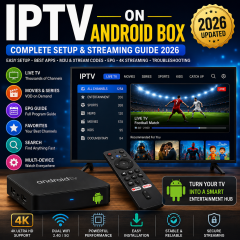
Using IPTV on Android Box is a practical way to create a flexible large-screen streaming environment at home. An Android TV Box can connect directly to a television, run compatible IPTV applications, and provide a remote-friendly interface for browsing live TV, movies, series, sports, news, and other available content.
For beginners, connecting the box to the television is usually the easy part. The more important questions come during configuration: Which IPTV player should you use? How do you add an M3U playlist? What is the difference between M3U and Xtream Codes? How do you configure an EPG? Why does a playlist sometimes fail to load? What should you check when playback becomes slow?
This complete guide to IPTV on Android Box explains the full process from preparation to everyday viewing. It covers Android Box setup, IPTV player selection, M3U and Xtream Codes, EPG, playlist organization, 4K viewing, performance improvements, troubleshooting, and multi-device use.
The basic workflow is:
Android Box → TV → Internet → IPTV Player → IPTV Information → Content → Playback
Once these components are understood, Android Box IPTV setup becomes much easier.
What Is IPTV on Android Box?
IPTV stands for Internet Protocol Television and refers to television and digital video content delivered through internet networks.
When IPTV is used on an Android Box, the box acts as the operating environment between your television and the IPTV application.
The IPTV player reads playlist or login information and turns it into a usable viewing interface.
The process can be understood as:
Internet Connection → IPTV Player → IPTV Information → Content Library → Television
The player controls many of the features users interact with every day, including:
-
Live TV
-
Movies
-
Series
-
Sports
-
News
-
Favorites
-
Search
-
EPG
-
Playlist management
-
Playback controls
The Android Box provides the hardware and operating environment, while the IPTV player determines much of the viewing experience.
Why Use an Android Box for IPTV?
Android TV Boxes are popular because they provide a flexible application environment and can add Android-based streaming capabilities to a television.
Flexible Application Support
Android-based devices can support a wide range of streaming and IPTV applications.
This gives users more freedom to choose an application according to their preferred interface, playlist format, and viewing habits.
Large-Screen Viewing
An Android Box connects directly to a television, allowing IPTV content to be viewed on a large display instead of a phone, tablet, or computer.
Remote-Friendly Navigation
Android TV interfaces are designed around remote controls.
This makes it easier to browse categories, move through menus, search for content, open the EPG, and change channels.
Customizable Environment
Users can install applications, adjust settings, organize playlists, and configure the device according to their own preferences.
Multi-Device Flexibility
An Android Box can also be part of a wider setup that includes Smart TVs, Fire TV devices, smartphones, tablets, and computers.
What You Need Before Setting Up IPTV on Android Box
A successful setup starts with a few basic preparations.
1. A Compatible Android Box
The first requirement is an Android TV Box or Android-based streaming device capable of running your selected IPTV application.
Before installation, check:
Hardware becomes more important as the complexity of the setup increases. Large playlists, high-resolution content, and advanced IPTV applications can benefit from stronger hardware.
2. A Television With HDMI
Most Android Boxes connect to a television through HDMI.
Before starting:
Checking these basics first can prevent unnecessary troubleshooting later.
3. A Stable Internet Connection
Your Android Box needs a stable network connection.
Common options include:
Ethernet can be useful when the Android Box is close to the router. Wi-Fi provides more flexibility when the device is located farther away.
Before configuring IPTV, test another online application.
If other applications also have connection problems, investigate the network first.
4. A Compatible IPTV Player
The IPTV player is the application that loads and organizes your IPTV content.
Common options include:
-
TiviMate
-
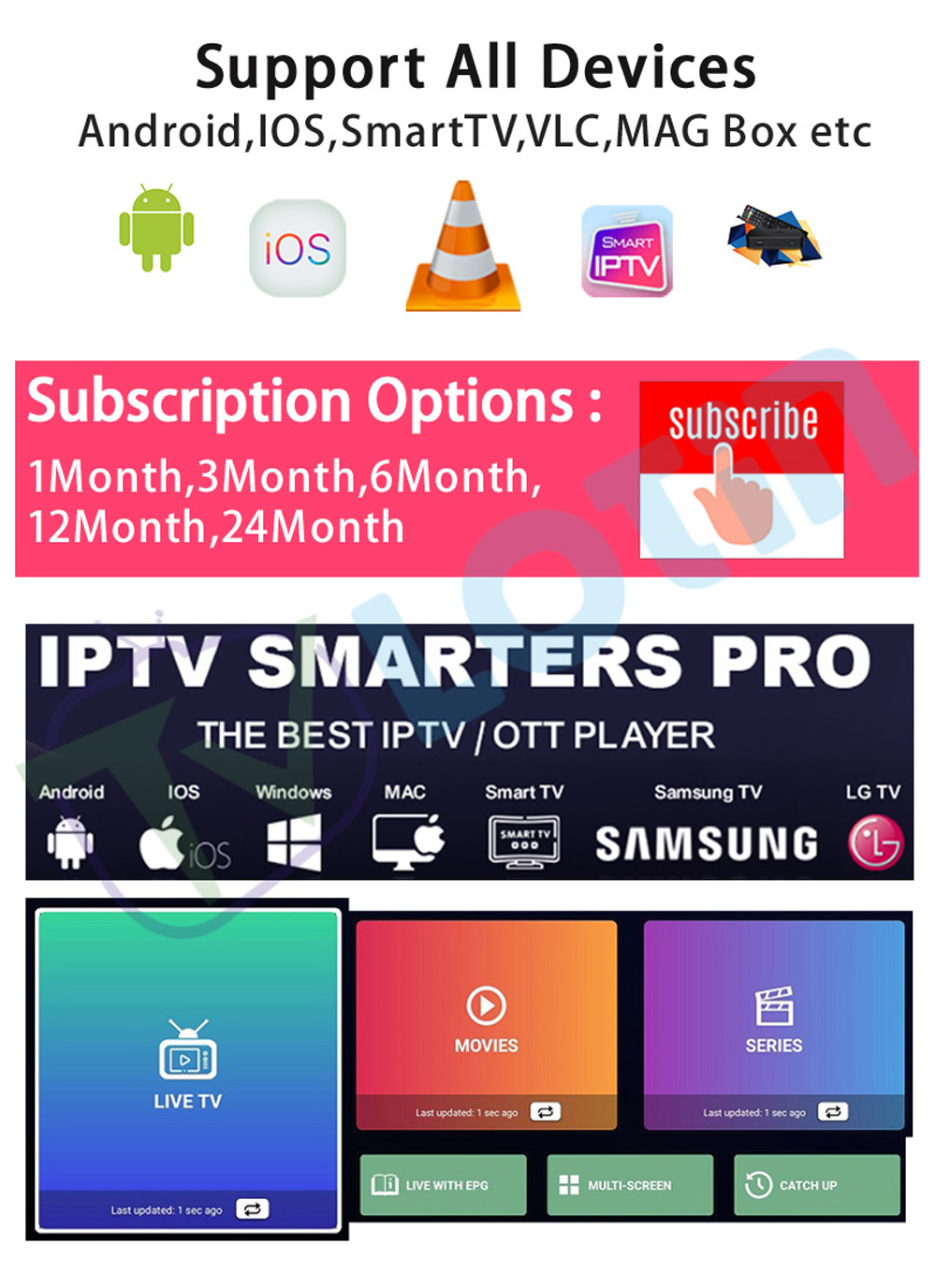
IPTV Smarters Pro
-
XCIPTV
-
OTT Navigator
Each player has different strengths.
Some focus on simplicity, while others provide advanced playlist management, EPG, filtering, favorites, multiview, or catch-up features.
The best IPTV player is the one that fits your device, playlist format, and viewing habits.
LotinTV's current Android-oriented product environments also reference several compatible IPTV applications, making IPTV player compatibility an important part of the setup decision.
5. Your IPTV Service Information
Depending on the IPTV environment, you may receive:
-
M3U URL
-
M3U8 URL
-
Username
-
Password
-
Server address
-
Xtream Codes information
-
Portal information
Keep this information available before starting.
Long URLs should be copied carefully because one missing character can prevent a playlist from loading.
IPTV on Android Box: Step-by-Step Setup
Step 1: Connect the Android Box to Your TV
Connect the Android Box to an HDMI port on your television.
Switch the TV to the correct HDMI source.
Once the Android Box home screen appears, complete the initial Android configuration.
This normally includes language, network, account, and device preferences.
Step 2: Connect the Android Box to the Internet
Open the network settings.
Choose Wi-Fi or Ethernet.
If you use Wi-Fi, select the correct network and enter the password.
Once connected, test another application.
This confirms that the Android Box has internet access before you begin IPTV configuration.
Step 3: Check Available Storage
Before installing multiple applications, check the remaining storage.
If the device is nearly full, remove applications you no longer use.
Also check for Android system updates.
A clean and updated system provides a better foundation for IPTV applications.
Step 4: Choose Your IPTV Player
Choose a player based on your requirements.
TiviMate
A strong option for users who prefer a television-style interface, EPG, favorites, playlist organization, and remote navigation.
IPTV Smarters Pro
Useful for users who want a straightforward interface for Live TV, VOD, series, and common IPTV login formats.
XCIPTV
A practical alternative for users who want to test a different IPTV interface.
OTT Navigator
More suitable for advanced Android users who want deeper filtering and playlist organization.
The right choice depends on your device and the type of IPTV information you need to load.
Step 5: Install the IPTV Player
Open the application environment on your Android Box.
Search for the IPTV player you want to use.
Install it and launch the application.
The setup screen may provide options such as:
-
M3U Playlist
-
Xtream Codes
-
Login
-
Portal
-
Server URL
Select the method that matches your IPTV information.
Step 6: Add Your IPTV Information
Enter the required information carefully.
For M3U, paste the complete M3U URL.
For Xtream Codes-style login, enter the username, password, and server address.
Avoid:
Many configuration problems come from incorrect input rather than the application itself.
Step 7: Wait for the Playlist to Load
After submitting your information, allow the application time to synchronize.
Loading time can depend on:
-
Playlist size
-
Device performance
-
Network conditions
-
Application
Large playlists may take longer to process.
Avoid repeatedly closing the player during synchronization.
Step 8: Test Several Categories
Once the playlist loads, test several sections.
For example:
-
Live TV
-
Sports
-
News
-
Movies
-
Series
-
Entertainment
-
Kids
Testing multiple categories gives you a better indication of whether the player is handling the playlist correctly.
Understanding M3U on Android Box
M3U is one of the most common IPTV playlist formats.
An M3U playlist contains structured information that a compatible IPTV application reads and organizes into a list of available content.
The basic process is:
M3U URL → IPTV Player → Categories → Playback
The Android Box does not automatically understand every IPTV format.
The IPTV player must support the selected format before it can process the information.
Typical M3U Setup
Step 1
Open the IPTV player.
Step 2
Select the M3U or playlist option.
Step 3
Paste the M3U URL.
Step 4
Save the playlist.
Step 5
Wait for synchronization.
Step 6
Open the available categories.
Step 7
Test playback.
If the playlist does not appear, check the URL and player compatibility before changing the entire setup.
Understanding Xtream Codes on Android Box
Some IPTV applications use a structured login instead of a single M3U URL.
This usually involves:
-
Username
-
Password
-
Server URL
After the login is accepted, the player may organize the available content automatically.
You may see categories such as:
-
Live TV
-
Movies
-
Series
-
Sports
-
Other available sections
The exact interface depends on the player.
The important point is to use the correct login method.
Do not enter M3U information into an Xtream Codes field unless the application specifically supports that method.
How to Choose the Best IPTV Player for Android Box
The IPTV player has a major effect on the everyday viewing experience.
Ease of Navigation
If you use a television remote, the interface should be comfortable and easy to control.
Large buttons and clear menus are generally better than phone-focused interfaces.
EPG Support
Users who watch a lot of live TV should prioritize EPG.
Search
Search becomes increasingly valuable as playlist size increases.
Favorites
Favorites reduce the time needed to reach frequently watched content.
Playlist Management
Advanced users may want:
-
Multiple playlists
-
Filters
-
Custom groups
-
Category management
Multiview
Sports fans may appreciate multiview when supported.
Catch-Up
Some players also support catch-up functionality when the content environment provides it.
Best IPTV Player for Beginners on Android Box
Beginners usually benefit from simplicity.
A good starting player should provide:
You do not necessarily need the most feature-heavy application.
Too many settings can make the first setup more confusing.
Start with an easy interface and add more advanced features later if you need them.
Best IPTV Player for Advanced Android Box Users
Advanced users often want more control over their content library.
Useful advanced functions include:
-
Multiple playlists
-
Filtering
-
Custom groups
-
Detailed EPG
-
Search
-
Multiview
-
Catch-up
-
Subtitle controls
-
Audio-track management
-
Playback customization
OTT Navigator can suit users who prefer deeper playlist management, while TiviMate is particularly useful for television-focused navigation.
IPTV on Android Box for 4K Viewing
Android Boxes are often used in high-resolution television environments.
For 4K viewing, several components need to work together:
4K TV + Capable Android Box + Compatible Player + Stable Network + Suitable Content
The Android Box must support the resolution you want to display.
The television must also support the target resolution.
The HDMI connection should be configured correctly.
The IPTV player must be capable of handling the playback environment.
High-resolution viewing is therefore a complete setup rather than a single hardware feature.
IPTV on Android Box and EPG
EPG stands for Electronic Program Guide.
For live TV users, EPG can be one of the most valuable IPTV features.
A well-configured EPG allows you to:
After your playlist loads, check the EPG settings inside the IPTV application.
If the guide appears empty, verify the EPG configuration before reinstalling the player.
How to Organize IPTV on Android Box
Large playlists can become difficult to manage without organization.
Create Favorites
Save frequently watched channels.
Organize Categories
Move important sections where they are easier to access.
Hide Unused Categories
Some players allow unnecessary sections to be hidden.
Use Search
Search is much faster than manually browsing a very large playlist.
Check Recently Watched
Recently watched sections can reduce navigation time.
The goal is to make a large content library feel simple.
How to Improve IPTV Performance on Android Box
The Android Box is only one part of the performance equation.
Use Ethernet When Practical
A wired connection can provide a consistent network environment when your router is nearby.
Improve Wi-Fi Placement
If you use Wi-Fi, avoid placing the Android Box where the signal is weak.
Keep Android Updated
Check regularly for system updates.
Keep the IPTV Player Updated
Application updates can improve compatibility and stability.
Remove Unused Applications
Freeing storage can make the device easier to manage.
Restart the Device
A simple restart can clear temporary issues and refresh system performance.
IPTV on Android Box Troubleshooting
Problem 1: IPTV App Will Not Install
Check:
If the player is not suitable for your Android environment, choose another compatible option.
Problem 2: IPTV App Opens but No Playlist Appears
Check:
-
M3U URL
-
Username
-
Password
-
Server address
-
Login method
If the information is correct, verify that the player supports the format.
Problem 3: Playlist Loads Slowly
Large playlists may require additional processing time.
Allow the application to finish synchronization.
If the issue continues, test another IPTV player to determine whether the problem is application-specific.
Problem 4: IPTV Playback Is Not Smooth
Start with the network.
Check:
Then determine whether the problem affects every stream or only specific content.
Problem 5: Android Box Freezes
Close unnecessary applications.
Restart the Android Box.
Check available storage.
Then look for system or application updates.
Problem 6: IPTV Works on Another Device but Not Android Box
Compare:
-
IPTV player
-
Login method
-
Playlist format
-
Android version
-
Application version
-
Network connection
A different IPTV player may interpret the same information differently.
IPTV on Android Box and Multi-Device Viewing
One advantage of an Android Box is that it can operate alongside other viewing devices.
A typical household may use:
Android Box — main television
Smart TV — secondary room
Fire TV — additional television
Smartphone — mobile viewing
Computer — desktop access
When comparing IPTV environments, broad device compatibility can be useful if you regularly move between screens.
Some current IPTV environments in the LotinTV catalog also describe Android TV Box and multi-device compatibility across Smart TV, Firestick, iOS and other connected platforms.
Android Box vs Firestick for IPTV
Both devices can provide a good IPTV experience.
Android Box
Advantages include:
-
Broad application flexibility
-
Greater customization
-
Large-screen environment
-
Potentially stronger hardware
-
Different storage options
Firestick
Advantages include:
Which Is Better?
The answer depends on your application preferences, hardware needs, and viewing habits.
Android Box can be more attractive to advanced users who want greater customization.
Firestick can be convenient for users who want a compact dedicated streaming device.
Android Box vs Smart TV for IPTV
Smart TV and Android Box can both work well, but they offer different levels of flexibility.
Smart TV
Best for users who already have a compatible IPTV application available.
Android Box
Better for users who want more freedom in choosing applications and settings.
An Android Box can also extend the capabilities of a television whose built-in application environment is limited.
IPTV on Android Box for Sports Fans
Sports viewers often have different requirements from general entertainment users.
Important features include:
-
Favorites
-
EPG
-
Search
-
Fast channel switching
-
Multiview
-
Category filtering
A well-organized sports category makes it easier to move from one event to another.
If sports are a major part of your viewing routine, focus on speed, organization, navigation, and EPG rather than decorative interface features.
IPTV on Android Box for Movie and Series Fans
Movie and series viewers usually care more about library organization.
Useful features include:
-
Search
-
Categories
-
Favorites
-
Recently watched
-
Continue watching
-
Subtitle controls
-
Audio-track support
An Android Box combined with a large TV can provide a comfortable environment for browsing large VOD libraries.
Android Box IPTV Setup Checklist
Before considering your installation complete, check:
This checklist allows you to check the setup systematically.
Frequently Asked Questions About IPTV on Android Box
Can I use IPTV on an Android Box?
Yes. Android TV Boxes are widely used for IPTV because they support a broad range of applications and playlist formats.
What do I need for IPTV on Android Box?
You need an Android TV Box, a compatible television, an internet connection, an IPTV player, and the service information required by that player.
Can I use M3U on Android Box?
Yes, as long as your IPTV player supports M3U playlists.
Can I use Xtream Codes on Android Box?
Yes, when your IPTV player supports the relevant login method.
Which IPTV player is best for Android Box?
The best choice depends on your needs. TiviMate is strong for large-screen television use, IPTV Smarters Pro offers a straightforward interface, while OTT Navigator can suit advanced users who want deeper playlist organization.
Why is my IPTV playlist not loading?
Check your playlist URL or login information first, then verify the selected input method and player compatibility.
Why is IPTV buffering on Android Box?
Check the network connection, device performance, application settings, and whether the problem affects all streams or only certain content.
Can an Android Box replace a Smart TV for IPTV?
Yes. An Android TV Box can add an Android-based IPTV environment to a television with a suitable HDMI connection.
Can I use IPTV on Android Box and another device?
That depends on the IPTV environment and supported device configuration. Many environments support multiple devices, but the setup method can differ.
Final Thoughts
Using IPTV on Android Box becomes much easier when the process is divided into clear stages:
Connect Android Box → Connect Internet → Choose IPTV Player → Add IPTV Information → Load Playlist → Test Content → Organize Setup
The most important decision is choosing the right IPTV player.
A good player should match:
For beginners, a simple and organized player is often the best starting point.
For advanced users, features such as multiple playlists, filtering, multiview, detailed EPG, catch-up, and playback customization can provide more control.
Android Box also offers an important advantage: flexibility.
Instead of being limited to the built-in application environment of a particular television, you can use an Android-based platform that better matches your IPTV workflow.
Whether you mainly watch live TV, sports, movies, or series, the best setup combines suitable hardware, the right IPTV application, compatible playlist information, a stable network, and an interface that feels comfortable to use.
Once these components work together, an Android Box can provide a flexible and convenient IPTV experience on a large television.