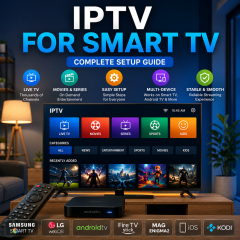
IPTV for Smart TV: Complete Setup Guide for Samsung, LG and Android TV
Smart TVs have become one of the most convenient ways to enjoy IPTV at home. Instead of relying on a separate streaming box, users can often install a compatible IPTV application directly on the television and manage their viewing experience from the TV interface.
However, getting started with IPTV for Smart TV can raise a few practical questions. Which IPTV application should you use? Does the process work the same way on Samsung and LG TVs? How do you add an M3U playlist? What should you check when an IPTV application opens but the content does not load?
This guide explains how IPTV works on Smart TVs, how to prepare your television, how to install and configure a compatible IPTV player, and how to troubleshoot common setup problems.
The goal is simple: give beginners a clear path from an internet-connected Smart TV to a properly organized IPTV viewing environment.
What Is IPTV for Smart TV?
IPTV stands for Internet Protocol Television. In simple terms, it is a way of delivering digital television content through an internet connection.
When IPTV is used on a Smart TV, the television acts as both the display and the connected platform used to run an IPTV application.
The basic workflow looks like this:
Internet Connection → IPTV Application → Playlist or Account Information → Content Library → TV Playback
The exact setup depends on the Smart TV operating system, the IPTV player, and the type of information provided by the IPTV service.
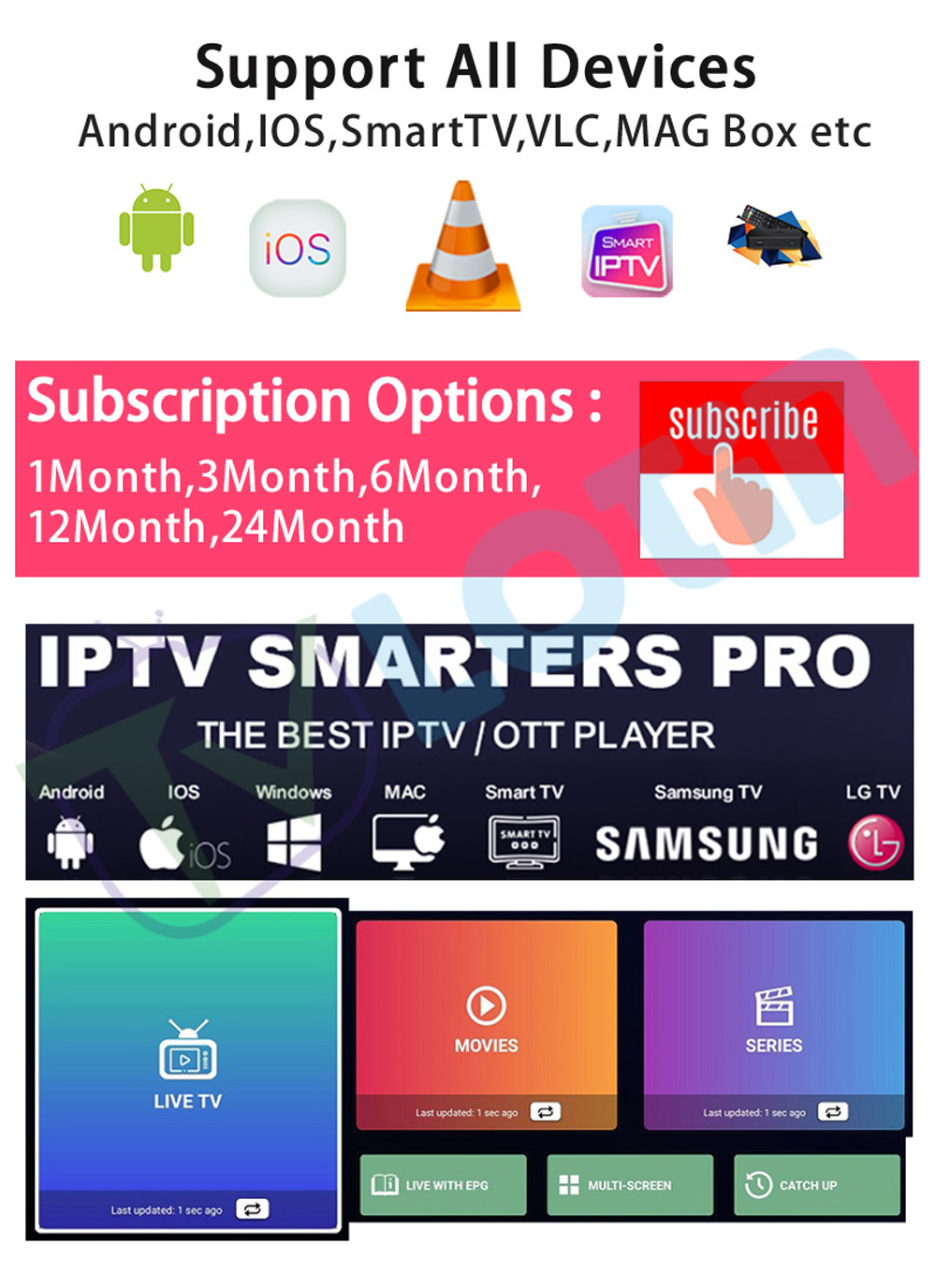
LotinTV currently lists Samsung and LG Smart TVs among supported device environments, alongside Android TVs, Android TV Boxes, Fire TV devices, iPhone, iPad, MAG, Kodi, and other platforms. (lotintv.com)
Why Use IPTV on a Smart TV?
Smart TVs offer several practical advantages for IPTV users.
Large-Screen Viewing
A Smart TV provides a larger viewing area than a phone, tablet, or computer.
This makes it a natural choice for home entertainment.
No Separate Streaming Box Required
When your television supports the necessary IPTV application, you may not need an additional external streaming device.
Simple Remote Navigation
Smart TV applications are designed to be controlled with a remote, which can make browsing categories and selecting content more comfortable.
One Central Entertainment Device
Your Smart TV can combine IPTV applications with other streaming and entertainment services in one location.
What You Need Before Setting Up IPTV on Smart TV
Before opening the app store, prepare the basic parts of your setup.
1. A Compatible Smart TV
Samsung and LG televisions are common Smart TV platforms used with IPTV applications. LotinTV's current device-support information specifically lists Samsung and LG Smart TVs. (lotintv.com)
Android TV televisions are another option and usually offer a wider application environment.
2. A Stable Internet Connection
Your television needs to be connected to the internet.
You can generally use:
Before configuring IPTV, test another online application on the TV.
If other apps cannot connect properly, fix the network connection before troubleshooting IPTV.
3. A Compatible IPTV Player
The IPTV player is the application that displays your playlist and organizes the available content.
Different players support different input methods, so application compatibility is important.
A player may support:
-
M3U playlists
-
Username and password
-
Server information
-
Portal configuration
-
EPG data
4. IPTV Service Information
Depending on the setup, you may need:
-
M3U URL
-
Username
-
Password
-
Server address
-
Portal information
Copy these details carefully, especially long URLs.
IPTV for Smart TV: Samsung Setup Guide
Samsung Smart TVs use their own application environment, so the exact menu names can vary between models and software versions.
The overall setup process remains relatively straightforward.
Step 1: Connect Your Samsung TV to the Internet
Open the network settings.
Connect the TV through Wi-Fi or Ethernet.
Once connected, test another online application to confirm that the network is working.
Step 2: Open the Samsung App Store
Open the application section on your Smart TV.
Search for a compatible IPTV player.
Before installing anything, check whether the application supports your preferred IPTV input method.
Step 3: Install the IPTV Application
Select the application and complete the installation.
Once installed, open it.
Step 4: Add Your IPTV Information
Depending on the application, you may see options such as:
-
Add Playlist
-
M3U
-
Login
-
Server
-
Portal
Choose the method that matches your service information.
Step 5: Allow the Playlist to Load
After entering the required information, wait for the player to synchronize.
The initial loading process may take longer when there are many categories to organize.
Step 6: Test the Interface
Open several categories and test different content sections.
Do not judge the entire setup based on a single item.
IPTV for Smart TV: LG Setup Guide
LG Smart TVs provide a similar general workflow.
Step 1: Connect Your LG TV to the Internet
Open the network settings and establish a Wi-Fi or Ethernet connection.
Test another application to confirm the internet is working correctly.
Step 2: Open the LG Content Store
Search for an IPTV player compatible with your TV.
The available applications can vary based on the TV model, operating system, and region.
Step 3: Install a Compatible IPTV Player
Choose the application that supports the IPTV information format you have.
Step 4: Add Your Playlist or Account
Launch the application.
Depending on the player, you may be asked for an M3U playlist, account credentials, server information, or another supported format.
Step 5: Load and Organize the Content
Give the application time to synchronize the playlist.
Then check categories, favorites, EPG information, and playback.
IPTV for Android Smart TV
Android TV is especially flexible because it provides a broad application environment.
The setup process usually follows this sequence:
Connect TV → Open Play Store → Install IPTV Player → Add Playlist → Load Content → Test Playback
Step 1: Connect the Android TV to the Internet
Use Wi-Fi or Ethernet.
Step 2: Open Google Play Store
Search for a compatible IPTV application.
Step 3: Install the Player
Select a player that supports your playlist or login method.
Step 4: Add IPTV Information
Enter the required data.
Step 5: Load the Playlist
Wait for the application to synchronize.
Step 6: Customize the Interface
Set favorites, EPG, language, and other preferences.
Android TV is often a good option for users who want more flexibility than a traditional Smart TV application environment.
How to Set Up M3U IPTV on Smart TV
M3U is one of the most common formats used in IPTV setups.
An M3U playlist contains structured information that an IPTV player reads to build the available streaming list.
The basic process is:
M3U URL → IPTV Player → Playlist Categories → Playback
LotinTV already has a dedicated article explaining what an M3U IPTV server playlist means and how compatible devices use M3U information.
You can read it here:
What Does M3U of IPTV Server Mean?
(lotintv.com)
Step 1: Open the IPTV Player
Launch the application installed on your Smart TV.
Step 2: Select Playlist or M3U
Choose the option for adding a playlist.
Step 3: Enter the M3U URL
Paste the URL exactly as provided.
Avoid unnecessary spaces.
Step 4: Save the Playlist
Submit the information and wait for synchronization.
Step 5: Review the Categories
Once loaded, check whether the available categories appear correctly.
How to Use IPTV Applications on Smart TV
The installation process is only the beginning.
A good IPTV experience depends heavily on how the application is organized.
Favorites
Use favorites to keep frequently watched content easy to reach.
Categories
Large playlists can contain many sections.
Keeping categories organized can significantly reduce navigation time.
Electronic Program Guide
If your IPTV setup includes EPG support, configure it so you can browse scheduled programming more easily.
Language
Choose the interface language that feels most comfortable.
Playback Settings
Depending on the application, you may be able to adjust playback behavior, subtitles, aspect ratio, and other options.
Best IPTV Features to Look for on Smart TV
Not every IPTV application offers the same experience.
When choosing a player, consider these features.
Easy Remote Navigation
The interface should be easy to control using your television remote.
A complicated mobile-style interface can make TV navigation frustrating.
Playlist Support
Check whether the player supports your required format before installing it.
Favorites
Favorites are useful when dealing with large content libraries.
EPG Support
An EPG can make live TV browsing more convenient.
Category Management
The ability to organize or hide unnecessary categories is useful for large playlists.
Stable Performance
The application should respond smoothly when opening menus, changing categories, and starting playback.
IPTV for Smart TV Troubleshooting
Even a properly configured Smart TV can experience setup problems.
The best approach is to isolate the problem.
IPTV App Will Not Install
Check:
-
Smart TV compatibility
-
Available storage
-
Internet connection
-
Application availability
If the application is not designed for your television platform, look for another compatible player.
IPTV App Opens but the Playlist Is Empty
Check the information you entered.
Pay particular attention to:
-
M3U URL
-
Username
-
Password
-
Server address
-
Selected login method
A single incorrect character can prevent a playlist from loading.
IPTV Playlist Loads Slowly
Large playlists can take longer to synchronize.
Allow the application enough time to finish processing the content.
Repeatedly closing the application during synchronization may make the process less predictable.
IPTV Works but Playback Is Not Smooth
Start with the network connection.
Check whether:
-
Other applications stream normally
-
Wi-Fi signal is strong
-
The TV is far from the router
-
Other devices are consuming significant network resources
Then determine whether the issue affects all content or only a specific category.
IPTV App Freezes
Close the application and reopen it.
If the problem continues, restart the television.
Then check whether the IPTV application or Smart TV system has an available update.
How to Improve IPTV Performance on Smart TV
A good installation should also be easy to maintain.
Use Ethernet When Practical
If your Smart TV is close to the router, Ethernet can provide a stable wired environment.
Improve Wi-Fi Placement
If you use Wi-Fi, avoid placing your TV in an area with weak wireless coverage.
Keep Your TV Updated
Regular system updates can improve application compatibility.
Keep the IPTV App Updated
An updated player may provide better stability and compatibility.
Remove Unused Apps
If your TV has limited storage, removing applications you no longer use can make it easier to manage the system.
IPTV for Smart TV: Samsung vs LG vs Android TV
Each Smart TV environment has different strengths.
| Platform |
Main Advantage |
| Samsung Smart TV |
Familiar TV-focused interface |
| LG Smart TV |
Simple television-centered experience |
| Android TV |
Broader application flexibility |
| Android TV Box |
Additional flexibility for compatible TVs |
The best choice depends on the television you already own, the applications available for that platform, and how much customization you want.
IPTV Compatible Devices Beyond Smart TV
One of the advantages of IPTV technology is that Smart TV is only one possible viewing environment.
LotinTV's current device information lists Samsung and LG Smart TVs alongside:
-
Android TV
-
Android TV Boxes
-
Amazon Fire TV
-
iPhone
-
iPad
-
Apple TV
-
MAG
-
Kodi
-
Android smartphones
(lotintv.com)
This makes it easier for users to build a viewing setup around the devices they already have.
For example, someone may primarily watch IPTV on a Smart TV at home while using a smartphone or tablet for more flexible viewing.
IPTV for Smart TV and Multi-Device Viewing
A modern home may include several different screens.
You might use:
Smart TV for the living room
Android TV Box for another television
Smartphone for mobile use
Computer for desktop access
The important point is that the setup method may differ from one platform to another even when the underlying IPTV information remains similar.
IPTV for Business and Reseller Users
Smart TV setup is primarily an end-user process.
For resellers and IPTV operators, there is another management layer behind the customer device.
The basic structure can look like:
Reseller Panel → Customer Account → IPTV Information → Smart TV → IPTV Player
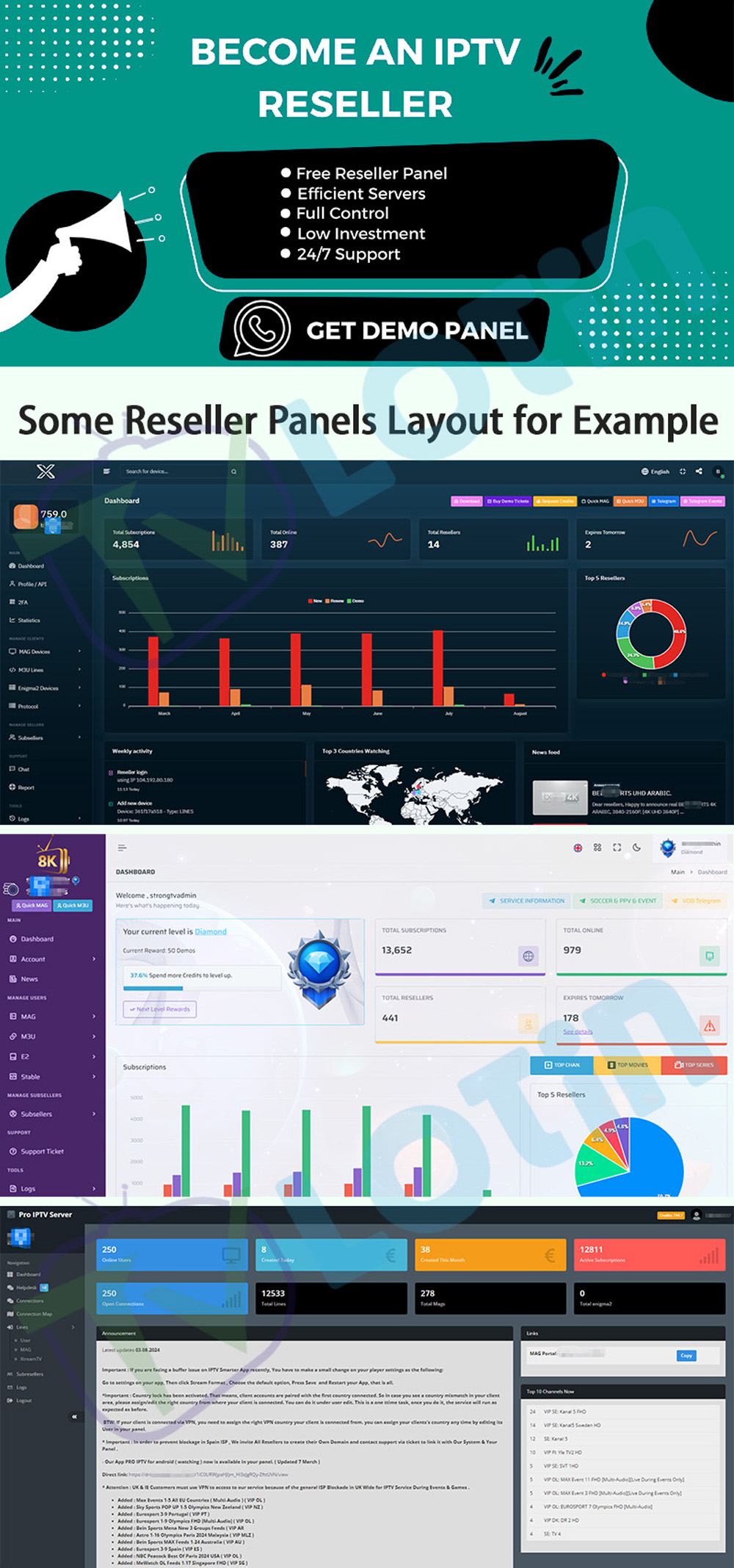
LotinTV's current IPTV Reseller Panel explains functions related to account management, device management, M3U trials, MAG trials, and supported devices including Samsung and LG Smart TVs. (lotintv.com)
This distinction is useful for anyone managing IPTV for more than one customer. The Smart TV is the viewing endpoint, while account and service management can happen separately.
IPTV for Smart TV: Beginner Setup Checklist
Before considering your installation complete, check each item:
This checklist helps prevent the most common configuration mistakes.
Frequently Asked Questions About IPTV for Smart TV
Can I use IPTV on Samsung Smart TV?
Yes. Samsung Smart TVs are among the Smart TV platforms listed by LotinTV for IPTV device compatibility. The exact application options depend on the TV model and software environment. (lotintv.com)
Can I use IPTV on LG Smart TV?
Yes. LG Smart TVs are also listed among supported IPTV device environments. (lotintv.com)
Can I use M3U on Smart TV?
Yes, when the IPTV application installed on your TV supports M3U playlists.
Why is my IPTV playlist not loading on Smart TV?
Check the M3U URL or account information first. Then verify the selected login method, application compatibility, and internet connection.
Why does IPTV buffer on Smart TV?
Start by checking the Wi-Fi or Ethernet connection. Then test whether other applications stream normally and determine whether the problem affects all content or only specific streams.
Do I need an Android TV Box if I already have a Smart TV?
Not necessarily. If your Smart TV supports a compatible IPTV application, you may be able to use IPTV directly through the television. An Android TV Box can provide another application environment when users want additional flexibility.
Can the same IPTV setup work on different devices?
The answer depends on the service and application configuration. The same IPTV information may be used across supported platforms, but the installation steps and applications can differ.
Final Thoughts
IPTV for Smart TV is easier to understand when the setup is divided into a few clear stages:
Connect the TV → Install a compatible IPTV player → Add IPTV information → Load the playlist → Test playback → Organize the interface
Samsung, LG, and Android TV platforms may have different menus, but the underlying workflow remains similar.
For beginners, the most important step is choosing an IPTV player that matches the format you need. After that, most problems can be isolated by checking the device, internet connection, application, and configuration one by one.
Smart TVs also provide a convenient foundation for a larger multi-device setup. You can use the television as your primary screen while keeping a smartphone, tablet, computer, Android TV Box, or Fire TV device as additional viewing environments.
If you want to continue learning about IPTV setup and related technologies, LotinTV's existing M3U guide and IPTV Reseller Panel resources provide useful next steps for understanding playlist configuration and device management.